
Social Workflows
Content Calendar in Google Sheets: Columns and Sample Week
A content calendar for a one-person product brand fits in one Google Sheets tab. See the exact column layout, a filled hypothetical week, and a short weekly routine for keeping it current.
Aayush Lamichhane
Founder & CEO
9 min read

In short
- A content calendar in Google Sheets needs one row per post and about ten columns, not a complicated workbook.
- Separate the columns you plan (date, pillar, product, idea) from the columns you produce (caption, visual) and the columns you track (status, approved, notes).
- Plan one week at a time with a fixed set of content pillars so the next post is never a blank page.
- Use a status column with four values (Idea, Drafted, Ready, Posted) so you can see at a glance what is still an idea and what is ready.
- A tool with a free way to start can draft posts from your website, but nothing posts until you approve it.
A content calendar in Google Sheets only needs one tab, one row per post, and about ten columns: date, platform, pillar, product, idea, caption, visual, status, approved and notes. Group those columns into plan, produce and track, add a four-step status column (Idea, Drafted, Ready, Posted), and review the sheet once a week. This article gives the exact layout, a filled hypothetical week, and the routine that keeps it useful. It is written for owner-run product brands where one person is also the marketing team.
You build the sheet yourself in Google Sheets. There is no file to download here, because a calendar that matches how you work is easier to keep up than one copied from somebody else.
Why a simple sheet beats a complicated one
A calendar fails when it takes longer to maintain than to ignore. A one-person brand does not need approval chains, colour-coded workflows or separate tabs for each channel. It needs to answer three questions in a few seconds: what is going out next, what is still missing, and what has already gone out.
A spreadsheet suits that job because it can filter and sort without learning anything new. Keep these limits from the start:
- One tab for the working calendar. Add an archive tab later, once rows pile up.
- One row per post. If a post needs a caption, a photo and a link, those are cells in the same row, not separate rows.
- No more than about ten columns. Every extra column is something to fill in on a tired Thursday.
- Plain text values. Short, consistent words make filtering easy.
If an empty calendar is the real problem rather than the tool, what to do when your content calendar is empty covers where posts come from.
The column layout, step by step
Create a new sheet, name the tab "Calendar", and type these headers in row 1. Freeze the header row (look for a freeze option in the View menu) so it stays visible as the sheet grows.
| Column | Header | What goes in it | Format tip |
|---|---|---|---|
| A | Date | The day the post should go out | Format as date, sort ascending |
| B | Platform | Instagram, or wherever the post is going | Dropdown list |
| C | Pillar | The content theme the post belongs to | Dropdown list |
| D | Product | The product or collection the post is about, or "brand" | Dropdown list |
| E | Idea | One sentence on what the post says | Plain text |
| F | Caption | The caption text, or a first draft | Wrap text |
| G | Visual | What the image or video is, or where the file lives | Plain text |
| H | Status | Where the post is in the process | Dropdown list |
| I | Approved | Yes or blank, set by you after final review | Dropdown: Yes or blank |
| J | Notes | Anything odd: a link to add, a promise to check | Plain text |
The columns fall into three groups, and the groups matter more than the letters:
- Plan (A to E). Decided before any writing happens.
- Produce (F and G). The actual post material.
- Track (H to J). Where each post stands.
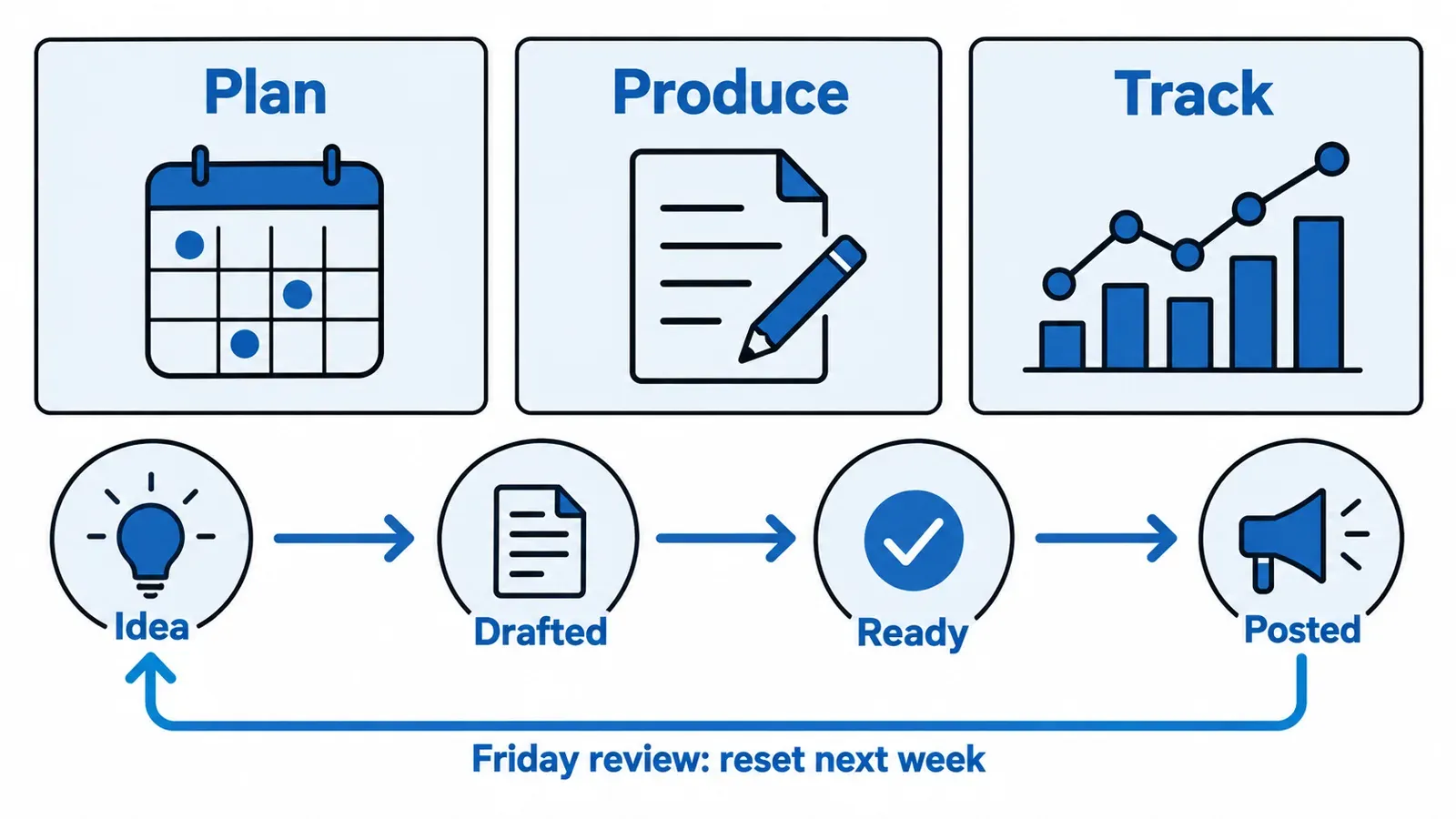
Set up the dropdowns
Select a column and add a dropdown list using the data validation option (menu names can change). Dropdowns stop you typing "Draft", "drafted" and "Drafted?" as three different values, which breaks filtering.
Use these lists to start:
- Status: Idea, Drafted, Ready, Posted.
- Approved: Yes or blank.
- Pillar: three to five themes. For a product brand, a workable set is Product, Behind the scenes, Customer question, Use case and Offer.
- Product: your actual product names, plus "brand" for posts about the business itself.
Four statuses are enough. Anything beyond that tends to be a place to hide unfinished work.
A filled sample content calendar week
The sample content calendar below is hypothetical. It shows a made-up candle maker planning three posts for one week. The brand, products, dates and captions are all invented, and details in square brackets are placeholders for facts you would check yourself.
| Date | Platform | Pillar | Product | Idea | Caption | Visual | Status | Approved | Notes |
|---|---|---|---|---|---|---|---|---|---|
| Mon | Product | Cedar jar candle | Show the candle lit, with the label visible | "The cedar jar, lit on a windowsill. Poured by hand in small batches. [Burn-time claim only if tested and written on the label.]" | Photo: lit candle, window light | Ready | Yes | Check label wording before posting | |
| Wed | Customer question | Wick care | Answer the question that came in twice this month | "You asked how short to trim the wick. Here is the habit we follow before every burn." | Short video: trimming a wick | Drafted | Film Tuesday | ||
| Fri | Behind the scenes | Brand | Packing an order from start to finish | "Friday packing. Every order gets a hand-written note." | Photo: packed box on a table | Idea | Needs a clean photo |
Reading the sheet takes a few seconds. Monday is ready and approved, Wednesday has a caption but no video, and Friday is still a thought. Filter the Status column and the next job is obvious.
A few habits show in this example:
- Every row has a pillar. That keeps the week balanced instead of five product shots in a row.
- Notes hold the unfinished work. "Film Tuesday" is a promise to yourself, written where you will see it.
- Claims are flagged, not invented. The caption leaves a bracket for anything that has to be checked first. For food, beauty and candles, keep wording to what is on the label and product page, and never add health or result claims.
How many rows a week is realistic depends on your time. How often a one-person beauty brand should post on Instagram helps set a pace you can keep.
Fill the calendar from what you already sell
The blank cells in the Idea column are what stall most calendars. Fill them from material you already have rather than waiting for inspiration:
- Walk down your product list. Each product gives at least one Product post and one Use case post.
- Scan recent messages and comments. Every question asked more than once is a Customer question row.
- List what you do in a normal week. Packing, pouring, sourcing, photographing: each is a Behind the scenes row.
- Check your product pages. The page already says what you want people to know, so a post can turn one page into a week. From product page to Instagram week walks through the method.
Write ideas as one plain sentence each. The caption can wait until the row is next in line.
Where Business DNA fits
If writing captions is the slow part, Youanai Social can help. It builds a Business DNA profile from your website, covering your brand voice and offer rules, and drafts social posts from it. A hypothetical use: the candle maker adds the website and gets drafts built from the Business DNA profile. The owner reads each draft, then marks the row Approved in the sheet.
Nothing posts on its own. Every draft waits for approval before anything is posted, and there is a free way to start. The sheet stays the planning view, and the habit behind it is explained in approve to ship for one-person ecommerce social.
A weekly routine that keeps the sheet alive
A calendar needs a rhythm more than it needs a clever design. Two short sessions, plus drafting and approval as needed, are enough.
| When | Session | What to do |
|---|---|---|
| Friday, or the last working day | Review and reset | Mark what went out as Posted, move missed posts forward, scan messages for new questions |
| Monday, or the first working day | Plan the week | Add rows for the week, assign a pillar and product to each, write one-sentence ideas |
| As needed | Produce | Write captions, gather photos, move rows to Drafted, then Ready |
| Before posting | Approve | Re-read caption and claims, mark Approved, then post |
Two rules make this stick:
- Never post a row that is not marked Approved. The Approved column is the last look before something goes public.
- Plan next week before this one ends. One week of rows ahead is plenty. Planning a month of captions in advance can mean rewriting some of them when products or priorities change.
For a fuller week-by-week structure for a beauty product brand, see a weekly social content plan for a skincare brand.
Small upgrades once the basics work
Add these only after a few weeks of using the plain version:
- A filter view for "this week". Look for a filter view option and filter the Date column so only the next seven days show.
- Conditional formatting on Status. Look for a conditional formatting option (menu names can change). Colour "Posted" grey and "Idea" amber so gaps stand out.
- An Archive tab. Move Posted rows there each month so the working tab stays short.
- A Results column. Add one note per post about what happened, so you can see which pillars earn more of your time. Record only what you actually saw.
- A Link column. Useful if posts point to a product page or story link.
Resist adding a column for every new idea. If a column stays empty for two weeks, delete it.
FAQ
How do I make a content calendar in Google Sheets?
Create a sheet with one row per post and columns for date, platform, pillar, product, idea, caption, visual, status, approved and notes. Add dropdowns for platform, pillar, product and status, freeze the header row, add an Approved column, and fill one week at a time.
What columns should a content calendar have?
Start with ten: date, platform, pillar, product, idea, caption, visual, status, approved and notes. Group them into plan, produce and track so each has a clear job. Add more only when a missing column causes a real problem.
Is a Google Sheets content calendar enough for one person?
Yes, for most one-person product brands. A single sheet shows what is going out and what is missing. If drafting captions is the slow part, pair the sheet with a drafting tool and keep the sheet as the planning view.
How far ahead should I plan?
One week ahead is enough to begin with, with the next week started before this one ends. Planning much further can mean rewriting captions when products, stock or priorities change.
How do I keep the calendar from going stale?
Hold two short sessions: a Friday review to mark what posted and reset, and a Monday plan to add the next rows. A calendar that is only opened when posting is already late will not be kept current.
Can I use the sample content calendar as it is?
Use it as a pattern, not as content. The brand, products and captions in the sample are hypothetical. Replace them with your own products, facts and wording, and check every claim against your label and product page.
Can I plan a Google Sheets content calendar for several platforms?
Yes. Keep one tab and use the Platform column to filter. If posts need different captions per platform, add a row for each version rather than a new tab.
Keep reading
Instagram Comment Ideas for Small Product Brands
Reply examples for the comments a small product brand actually gets, from ingredient questions to public complaints, plus honest ways to invite…
10 min read
Cottage Food Law Illinois: Selling and Promoting Online
Illinois allows in-state online sales and shipping of cottage food, with registration, a CFPM and a set label. Here is what the…
10 min read
Ecommerce Product Photography at Home: A Simple Setup
A phone, a window, a plain surface and a fixed shot list are enough to photograph a small catalogue consistently. Here is…
11 min read